

 Tweet
Asalam mu alakum to all!
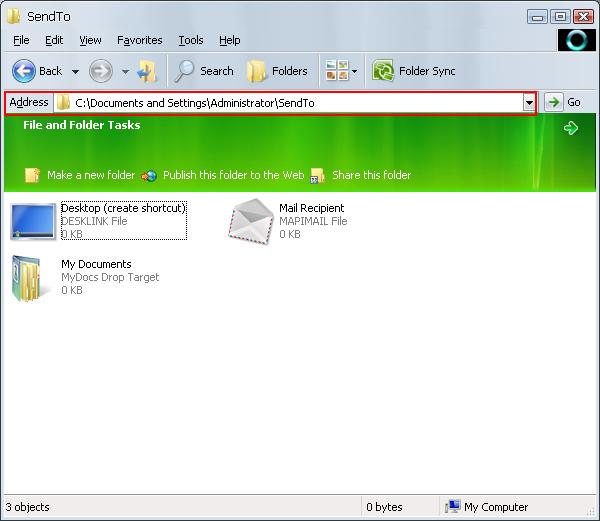
In this tutorial we will be talking about <Send To> folder, a folder where we can add a new location or favorite Editor and they will appear in the Send To Menu .
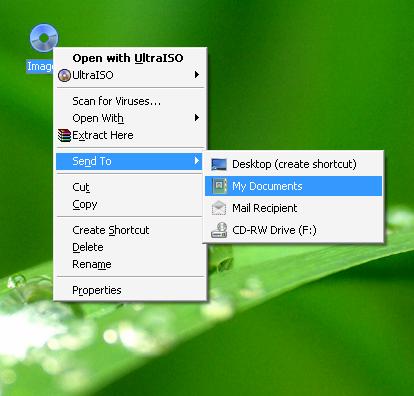
Many people use registry Editor to edit this menu but the drawback is, if you are newbie and a little thing goes wrong you can crash the windows. Adding a new location or your favorite editor to the <Send To> folder is much easier than edit a registry key. It is a time saving technique and more positive for me as I have been engaged in some new activities and can't reach to PF on time so I would prefer like to add a new location of PF, where i can send my tutorial direct, in-case we have to ask the permission from admin. Give it up, it seems to be impossible. Here we start.Firstly, you need to locate the <Send To> folder in your system.(don't be bothered that is in Local Disk (C ).
1:Double click on <My Computer> Icon to open it.
2:Open the <Local Disk (C> by double clicking on it or right click and choose <Open> from shortcut menu. In-case you have installed the operation system (windows) in other than drive C or you have multi operating systems, then locate the respective drive and open it.
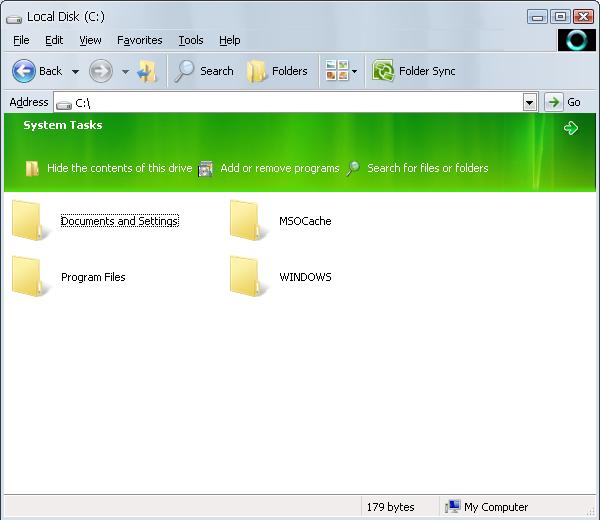
3: Open the <Documents and Settings> folder.
4:In the <Documents and Settings> folder, open the <Administrator> folder or your account name respective folder.
5:Now you have to locate the <Send To> folder in the administrator folder but remember that <Send To> folder is by-default set to be hidden. Follow these steps to show the hidden folder and files.
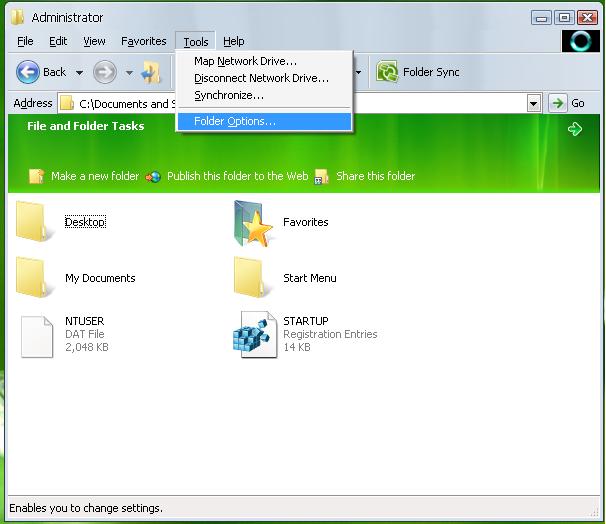
a: In the <Administrator> folder, click on the <Tools> menu and choose <Folder Option> from displayed menu. <Folder Options> dialog appears.
b: In the <View> tab, from <Hidden files and folder> choose <Show hidden files and folders>.
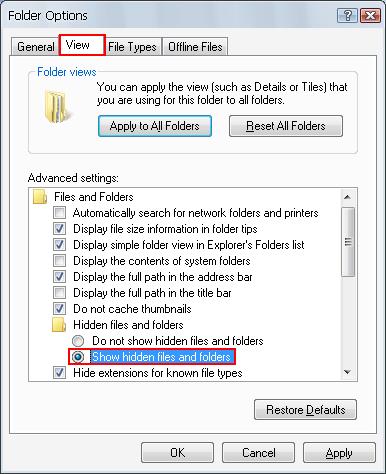
c: Click <Apply> and now <OK> button to close the dialog or direct <OK> to get two on one click.
d:Now you will see a lot of hidden folder but we are to work only on <Send To> folders. Double click, to open it.
6:Now it is time to add new locations and favorite Editor to <Send To> Menu.
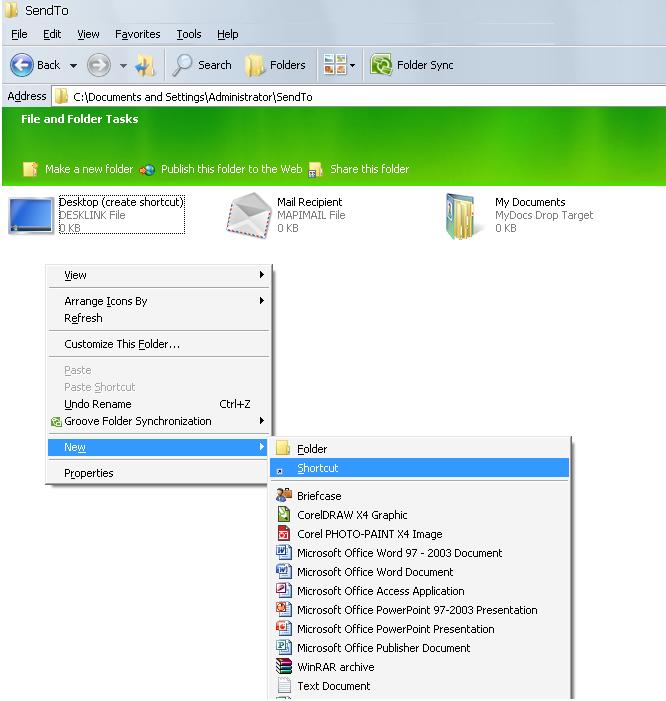
a: Right click on the empty area in the <Send To> folder, choose <New> then <Shortcut> from displayed menu.The shortcut wizard appears.
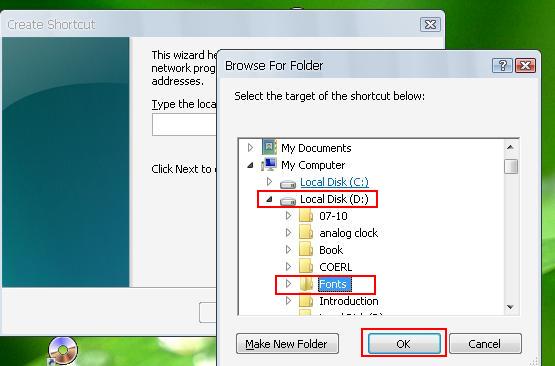
b: We will add a new location and an editor( you can add as many as you want). First we add a new location. In the shortcut wizard click <Browse> button and point to the location you want to add to the <Send To> Menu. For example we add a new location for <Font> folder from <Local Disk (D>. When you complete the process click <OK>.
c:Click <Next> button.
d:Now type the name for the shortcut (e.g. Best Fonts) and click <Finish> button.
e: To add an editor, Right click again, on the empty area in the <Send To> folder, choose <New> then <Shortcut> from displayed menu.The shortcut wizard appears.
f: We are going to add CorelDRAW as favorite editor.In the shortcut wizard click <Browse> button and point to the program location. For Corel Draw point to this location:
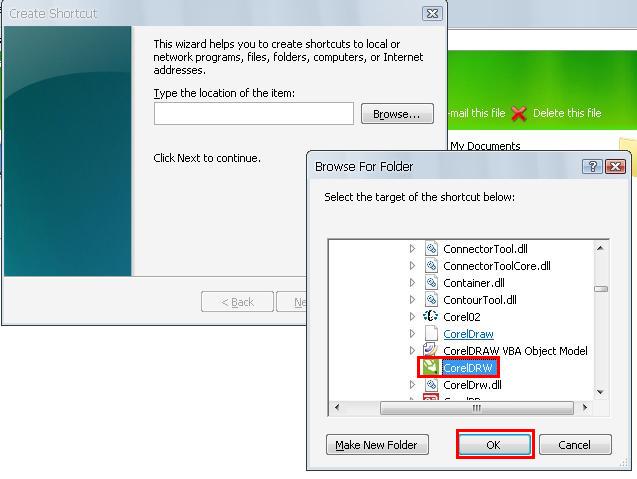
Local Disk (C:\)>Programs Files>Corel>CorelDRAW Graphics Suite X4>Draw>CorelDRW When you complete this process click <OK>.
g:Click <Next> button.
h:Now type the name for the shortcut (e.g. CorelDRAW) and click <Finish> button.
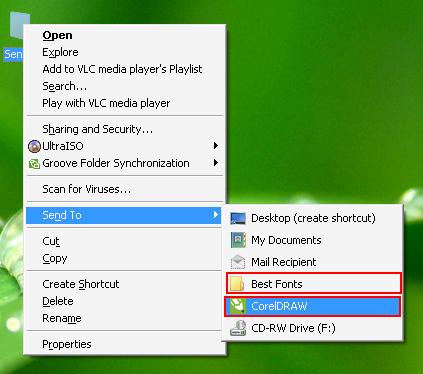
7:Now you can see and use the new location and your favorite editor in the <Send To> menu.
In this tutorial we will be talking about <Send To> folder, a folder where we can add a new location or favorite Editor and they will appear in the Send To Menu .
Many people use registry Editor to edit this menu but the drawback is, if you are newbie and a little thing goes wrong you can crash the windows. Adding a new location or your favorite editor to the <Send To> folder is much easier than edit a registry key. It is a time saving technique and more positive for me as I have been engaged in some new activities and can't reach to PF on time so I would prefer like to add a new location of PF, where i can send my tutorial direct, in-case we have to ask the permission from admin. Give it up, it seems to be impossible. Here we start.Firstly, you need to locate the <Send To> folder in your system.(don't be bothered that is in Local Disk (C
).1:Double click on <My Computer> Icon to open it.
2:Open the <Local Disk (C
> by double clicking on it or right click and choose <Open> from shortcut menu. In-case you have installed the operation system (windows) in other than drive C or you have multi operating systems, then locate the respective drive and open it. 3: Open the <Documents and Settings> folder.
4:In the <Documents and Settings> folder, open the <Administrator> folder or your account name respective folder.
5:Now you have to locate the <Send To> folder in the administrator folder but remember that <Send To> folder is by-default set to be hidden. Follow these steps to show the hidden folder and files.
a: In the <Administrator> folder, click on the <Tools> menu and choose <Folder Option> from displayed menu. <Folder Options> dialog appears.
b: In the <View> tab, from <Hidden files and folder> choose <Show hidden files and folders>.
c: Click <Apply> and now <OK> button to close the dialog or direct <OK> to get two on one click.
d:Now you will see a lot of hidden folder but we are to work only on <Send To> folders. Double click, to open it.
6:Now it is time to add new locations and favorite Editor to <Send To> Menu.
a: Right click on the empty area in the <Send To> folder, choose <New> then <Shortcut> from displayed menu.The shortcut wizard appears.
b: We will add a new location and an editor( you can add as many as you want). First we add a new location. In the shortcut wizard click <Browse> button and point to the location you want to add to the <Send To> Menu. For example we add a new location for <Font> folder from <Local Disk (D
>. When you complete the process click <OK>. c:Click <Next> button.
d:Now type the name for the shortcut (e.g. Best Fonts) and click <Finish> button.
e: To add an editor, Right click again, on the empty area in the <Send To> folder, choose <New> then <Shortcut> from displayed menu.The shortcut wizard appears.
f: We are going to add CorelDRAW as favorite editor.In the shortcut wizard click <Browse> button and point to the program location. For Corel Draw point to this location:
Local Disk (C:\)>Programs Files>Corel>CorelDRAW Graphics Suite X4>Draw>CorelDRW When you complete this process click <OK>.
g:Click <Next> button.
h:Now type the name for the shortcut (e.g. CorelDRAW) and click <Finish> button.
7:Now you can see and use the new location and your favorite editor in the <Send To> menu.
Comment