

 Tweet
Tweet
Create One-Click Shutdown and Reboot Shortcuts
>>> One-Click Shutdown Shortcut<<<<
1: First, create a shortcut on your desktop by right-clicking on the desktop, choosing New, and then choosing Shortcut.
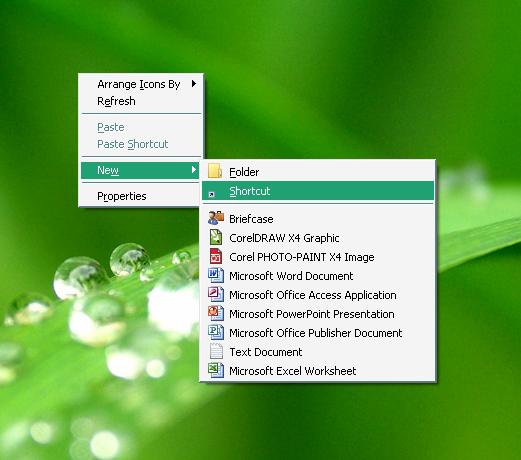
The Create Shortcut Wizard appears.
2: In the box asking for the location of the shortcut, type shutdown and press <Next>.
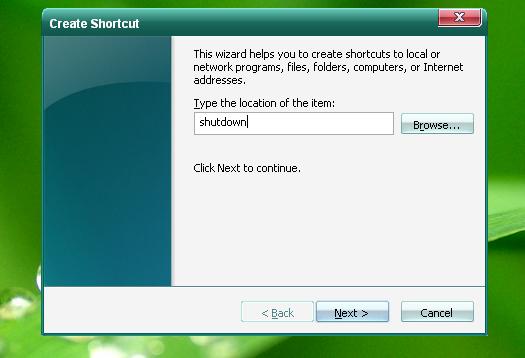
4: After you create the shortcut, double-clicking on it will shut down your PC.
>>> One-Click Restart Shortcut<<<<
1: First, create a shortcut on your desktop by right-clicking on the desktop, choosing New, and then choosing Shortcut. The Create Shortcut Wizard appears.
2: In the box asking for the location of the shortcut, type shutdown -r -t 50 -c "Rebooting your PC" and
press <Next>.
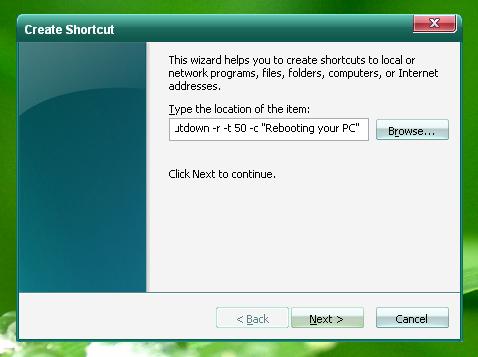
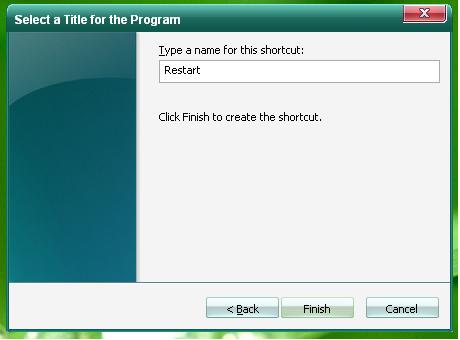
3: In the box asking for the name of shortcut, type any name for shortcut (e.g Restart) and press <Finish> to finish creating the shortcut.
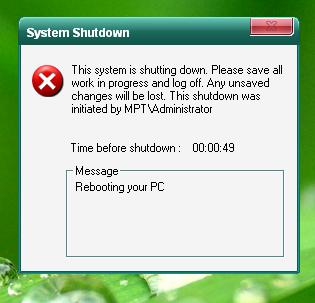
4: Double-clicking on that shortcut will reboot your
PC after a fifty-seconds delay and display the message
"Rebooting your PC."
But you can do much more with a shutdown shortcut than merely shut down your PC. You can add any combination of several switches to do extra duty, Table 1-3 lists all of them and describes their use.
Table 1-3
Switch
What it does
-s
Shuts down the PC.
-l
Logs off the current user.
-t nn
Indicates the duration of delay, in seconds, before performing the action.
-c "messagetext"
Displays a message in the System Shutdown window. A maximum of 127 characters can be used. The message must be enclosed in quotation marks.
-f
Forces any running applications to shut down.
-r
Reboots the PC.
Let us, give the shortcuts a real look by changing their icons.
1: First, right click on the shortcut and choose properties. The properties dialog appears on the shortcut tab press <Chang
Icon > button. If it says "The file%windir%/system32/shutdown.exe contains no icon.
Choose an icon from the list or specify a different
file.", Click Ok.
2: Now choose an appropriate icon for your shortcut and press <OK>. What I recommend looks like this:

>>> One-Click Shutdown Shortcut<<<<
1: First, create a shortcut on your desktop by right-clicking on the desktop, choosing New, and then choosing Shortcut.
The Create Shortcut Wizard appears.
2: In the box asking for the location of the shortcut, type shutdown and press <Next>.
4: After you create the shortcut, double-clicking on it will shut down your PC.
>>> One-Click Restart Shortcut<<<<
1: First, create a shortcut on your desktop by right-clicking on the desktop, choosing New, and then choosing Shortcut. The Create Shortcut Wizard appears.
2: In the box asking for the location of the shortcut, type shutdown -r -t 50 -c "Rebooting your PC" and
press <Next>.
3: In the box asking for the name of shortcut, type any name for shortcut (e.g Restart) and press <Finish> to finish creating the shortcut.
4: Double-clicking on that shortcut will reboot your
PC after a fifty-seconds delay and display the message
"Rebooting your PC."
But you can do much more with a shutdown shortcut than merely shut down your PC. You can add any combination of several switches to do extra duty, Table 1-3 lists all of them and describes their use.
Table 1-3
Switch
What it does
-s
Shuts down the PC.
-l
Logs off the current user.
-t nn
Indicates the duration of delay, in seconds, before performing the action.
-c "messagetext"
Displays a message in the System Shutdown window. A maximum of 127 characters can be used. The message must be enclosed in quotation marks.
-f
Forces any running applications to shut down.
-r
Reboots the PC.
Let us, give the shortcuts a real look by changing their icons.
1: First, right click on the shortcut and choose properties. The properties dialog appears on the shortcut tab press <Chang
Icon > button. If it says "The file%windir%/system32/shutdown.exe contains no icon.
Choose an icon from the list or specify a different
file.", Click Ok.
2: Now choose an appropriate icon for your shortcut and press <OK>. What I recommend looks like this:
Comment